

Why Share News?
Posting updates on your school profile helps you:
- Promote key events (Open Days, exam results, awards)
- Build trust and visibility with prospective families
- Stay top-of-mind for those browsing in your region
- Drive engagement with compelling, visual content
What Kind of News Can You Share?
Use your News section to post updates such as:
- Upcoming Open Days or virtual events
- Student or staff achievements
- Exam results and academic milestones
- Trips, projects, or extracurricular activities
- Special announcements or partnerships
All posts appear on your profile and can help attract prospective families interested in what’s happening at your school.
Steps to Share a News Update
Follow these steps to publish your post on your profile:
1. Go to “Post News” in your dashboard
From your school dashboard:
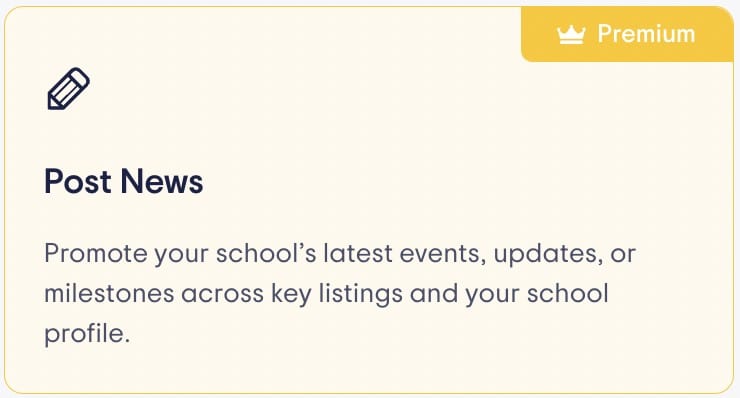
- Find the yellow tile labeled Post News
- Click the tile to open the News section
2. Click “New Post”
If you’ve shared news before, you’ll see a list of existing posts. To create a new one:
- Click the New Post button

3. Fill in your post details
Title
Create a clear and informative title that helps readers understand what the post is about.
Example: “Summer Open Days – June 15”

Excerpt
Write a short summary (max 200 characters). This preview text appears on your profile below the title.

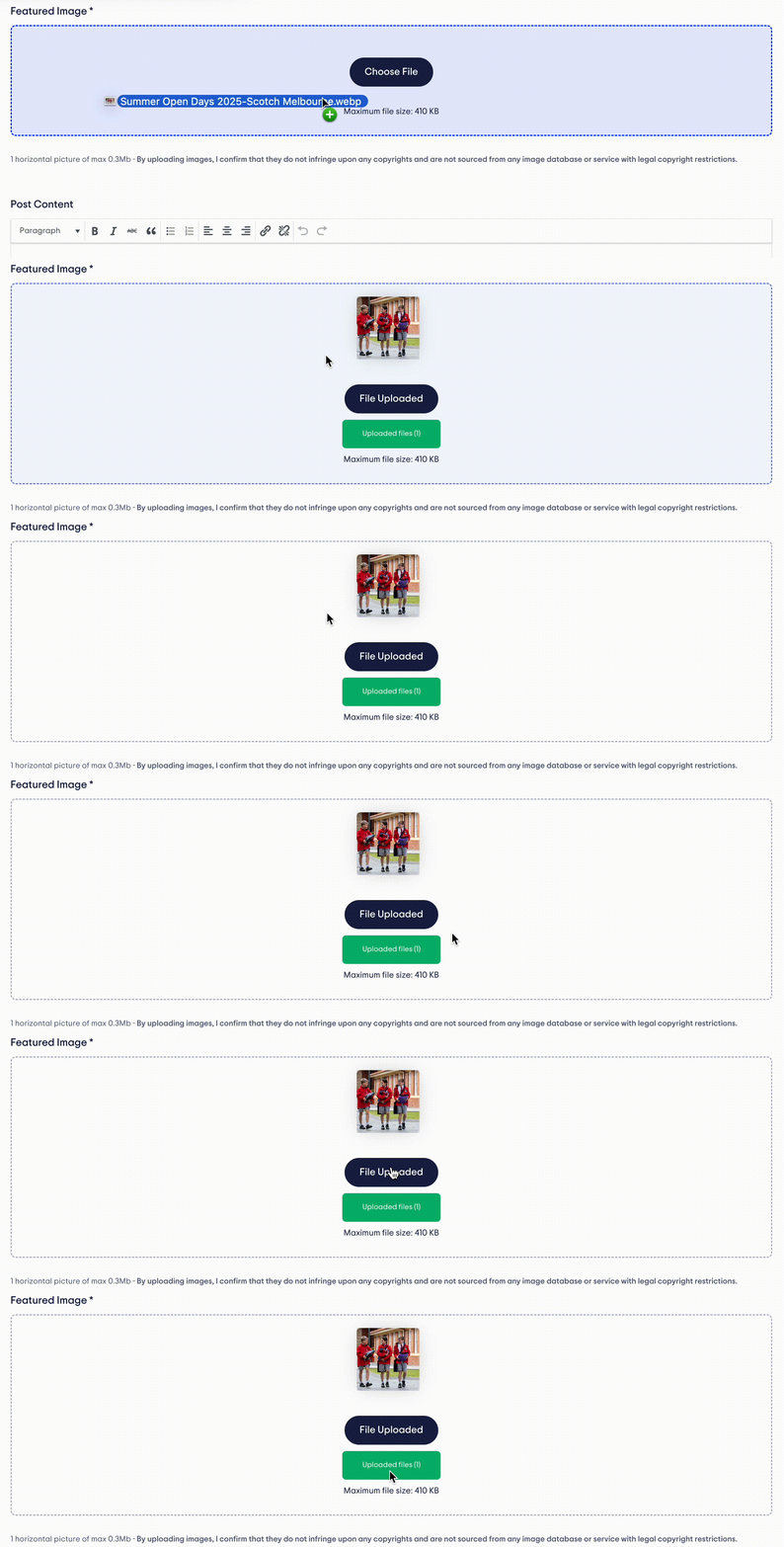
Featured Image
Upload a strong image that visually represents the news. This will appear next to your post on the profile page.
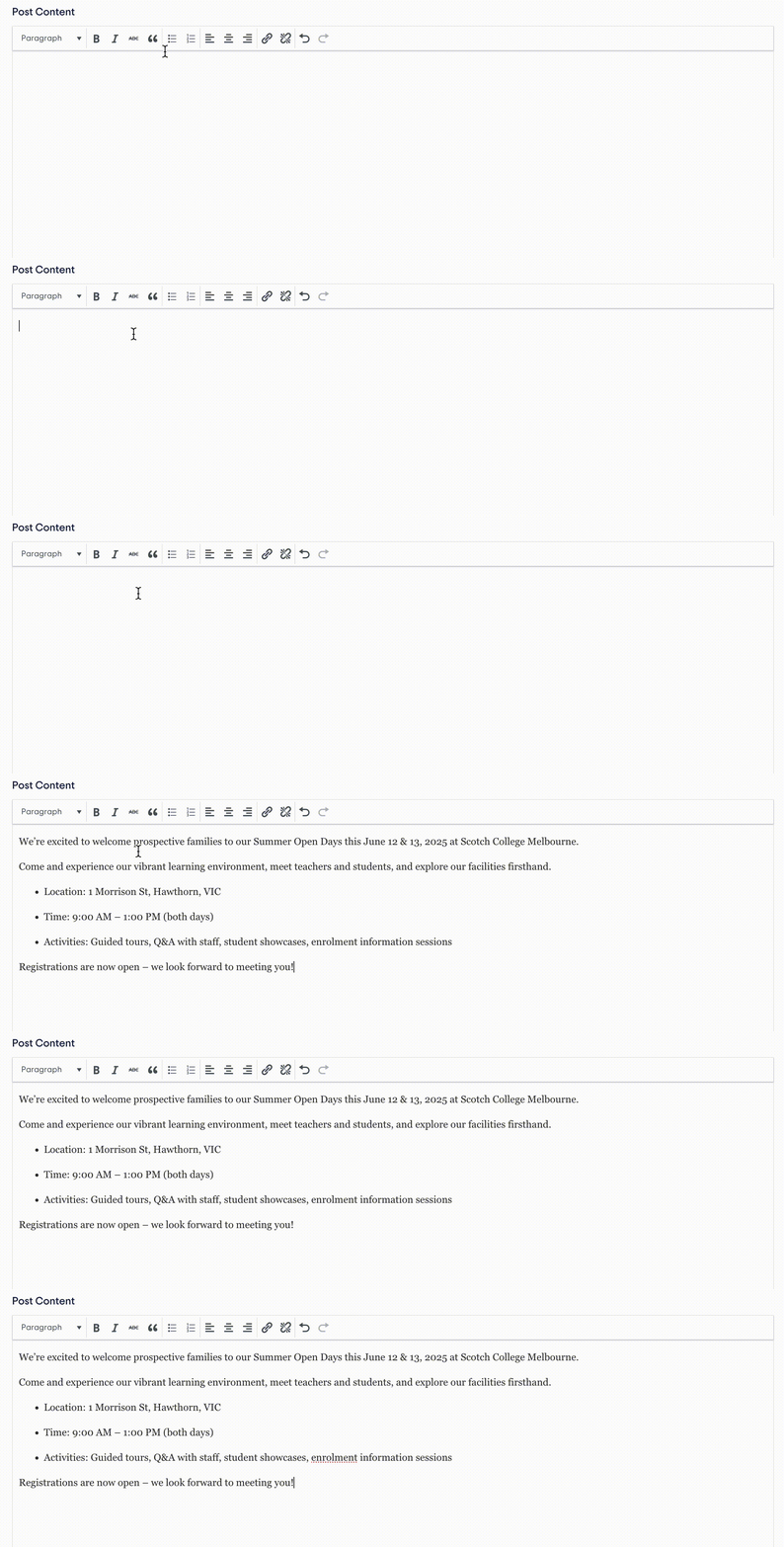
Post Content
In the main content box, tell the full story. Include the following details:
- Who the news is about
- What the event or update is
- When and where it happened
- Why it’s important or interesting to families
4. (Optional) Add a photo gallery
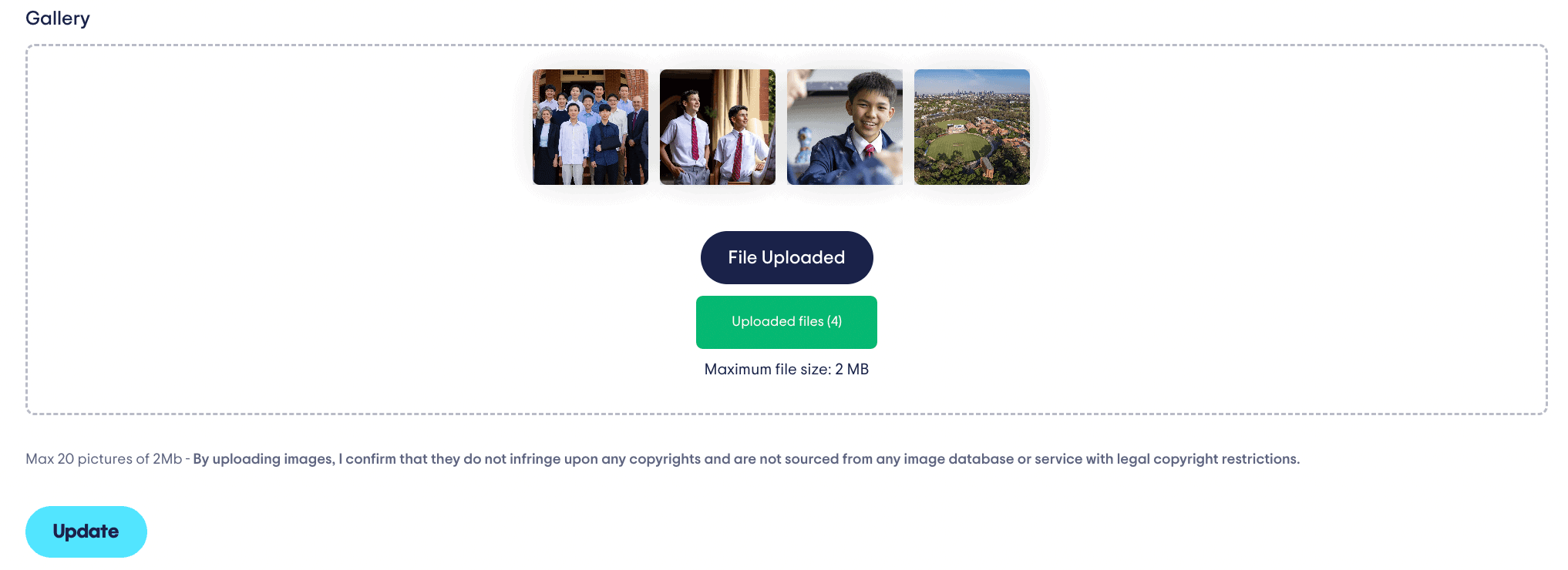
You can add up to 20 images (maximum 2MB each) to give families more insight into the event or activity.
5. Publish your post
When your content is ready:
- Click the Publish button at the bottom of the post
- Your news will go live immediately on your profile
How to Feature a Post
You can “feature” one post at a time to make it appear at the top of your profile. This is ideal for time-sensitive or high-impact updates.
To feature a post:
- Go to your list of published posts
- Click Edit on the one you want to feature
- Select the “Featured” option
- Click Save

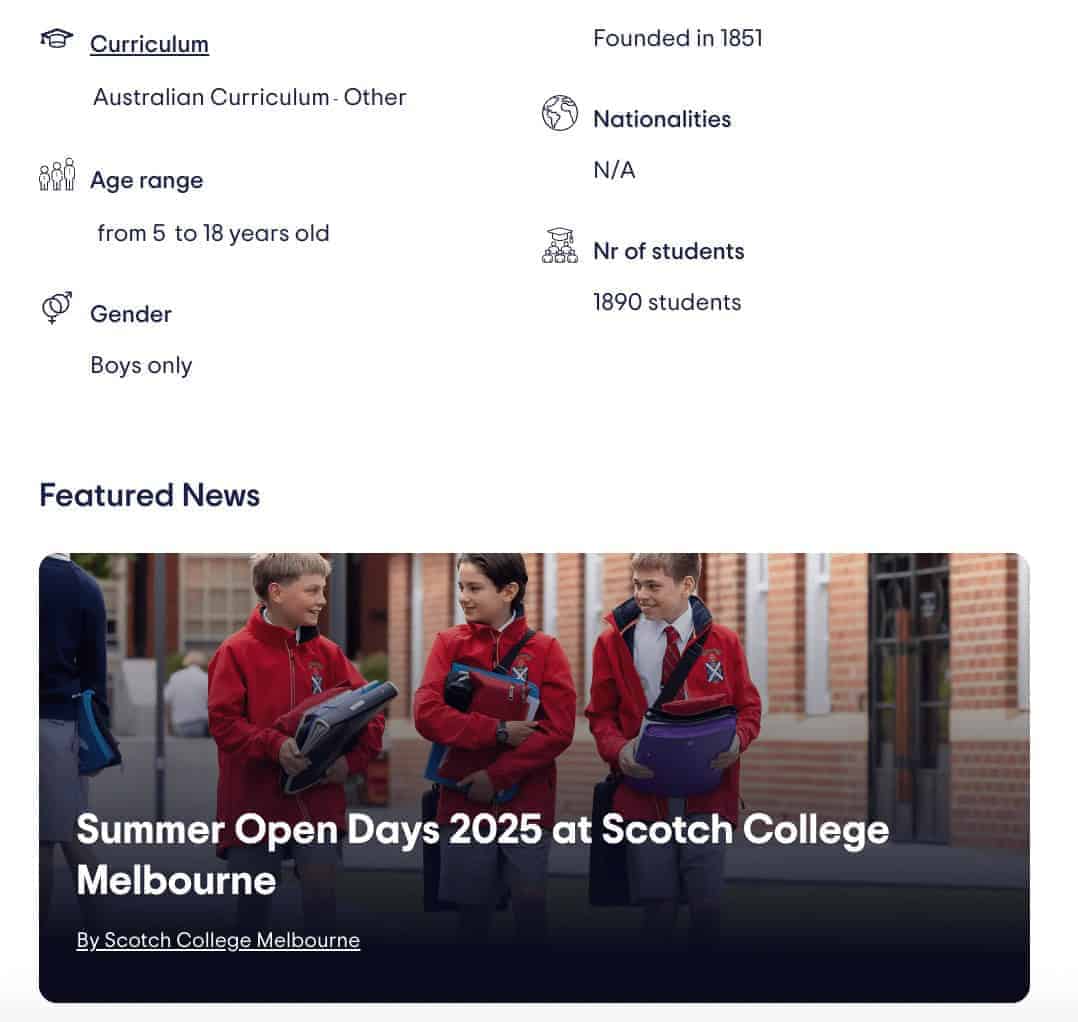
What Families Will See
Once published, your post appears in the News section of your school profile. Featured posts are pinned at the top.
Best Practices for News Posts
- Use specific titles — include event names and dates
- Keep your writing concise and friendly
- Choose strong images with clear focus and quality
- Use bullet points or headers to break up long content
- Share updates regularly to keep your profile active