

Reset Lost Password
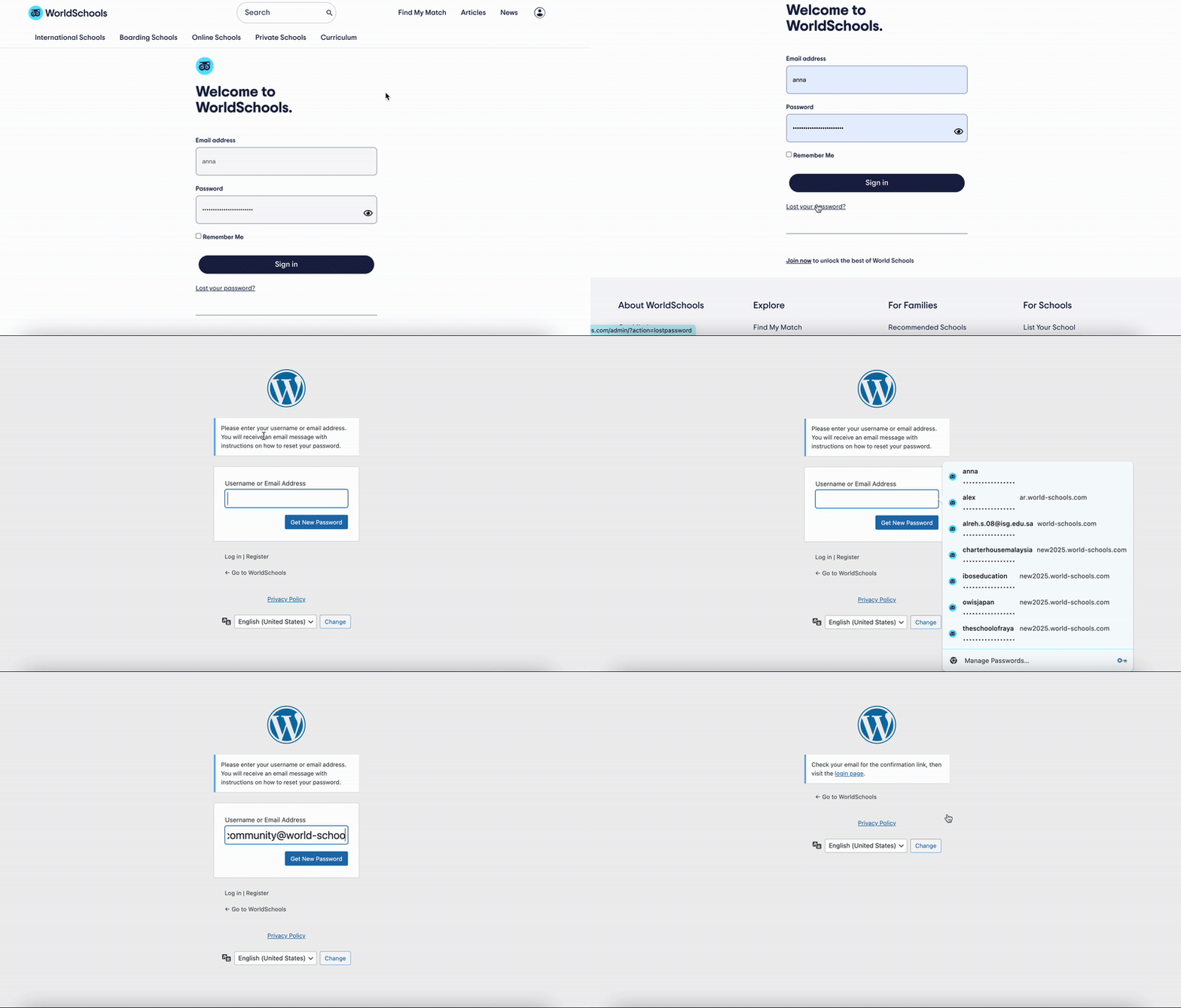
Go to the Login Page
Start by navigating to the login area:
- Deslocar-se para o rodapé of the Sítio Web das Escolas do Mundo
- Clique em Conecte-se ou Painel to reach the login screen
Click “Lost Your Password?”
On the login screen:
- Click the link labeled “Perdeu a sua palavra-passe?” below the login form

Submit Your Email Address
You’ll be asked to enter the email address associated with your account.
- Introduza o seu email
- Clicar “Reset Password”
- You’ll see a confirmation message if the email is recognized
Check Your Email and Set a New Password
You will receive an email with a password reset link.
- Open the email from World Schools
- Click the link and follow the instructions to set a new password
- Choose a secure password you haven’t used before
Update Password within your Dashboard
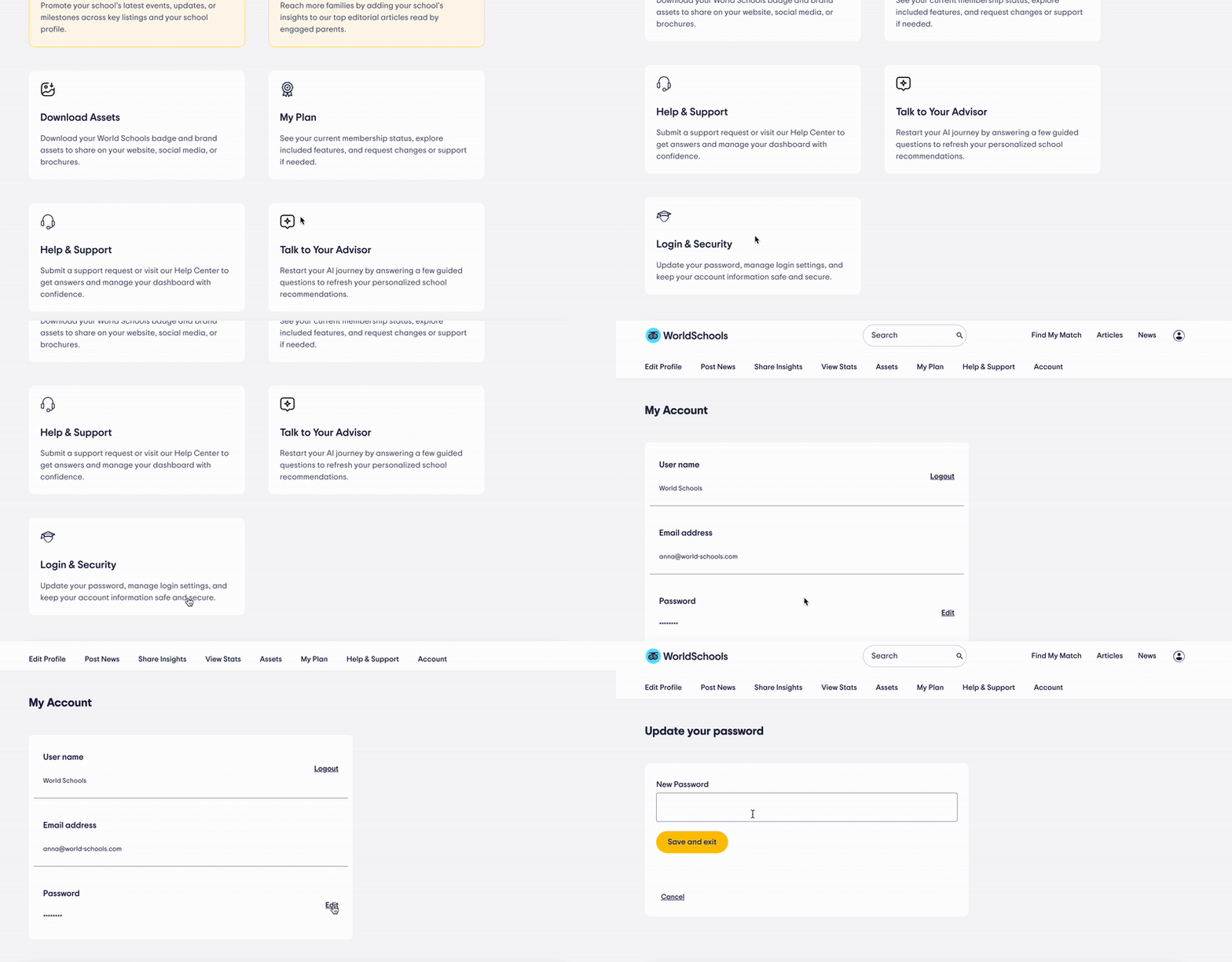
Access the Login & Security Section
From your School Dashboard, locate and click on the “Login & Security” tile. This section allows you to manage your login credentials, including your password.
Update Your Password
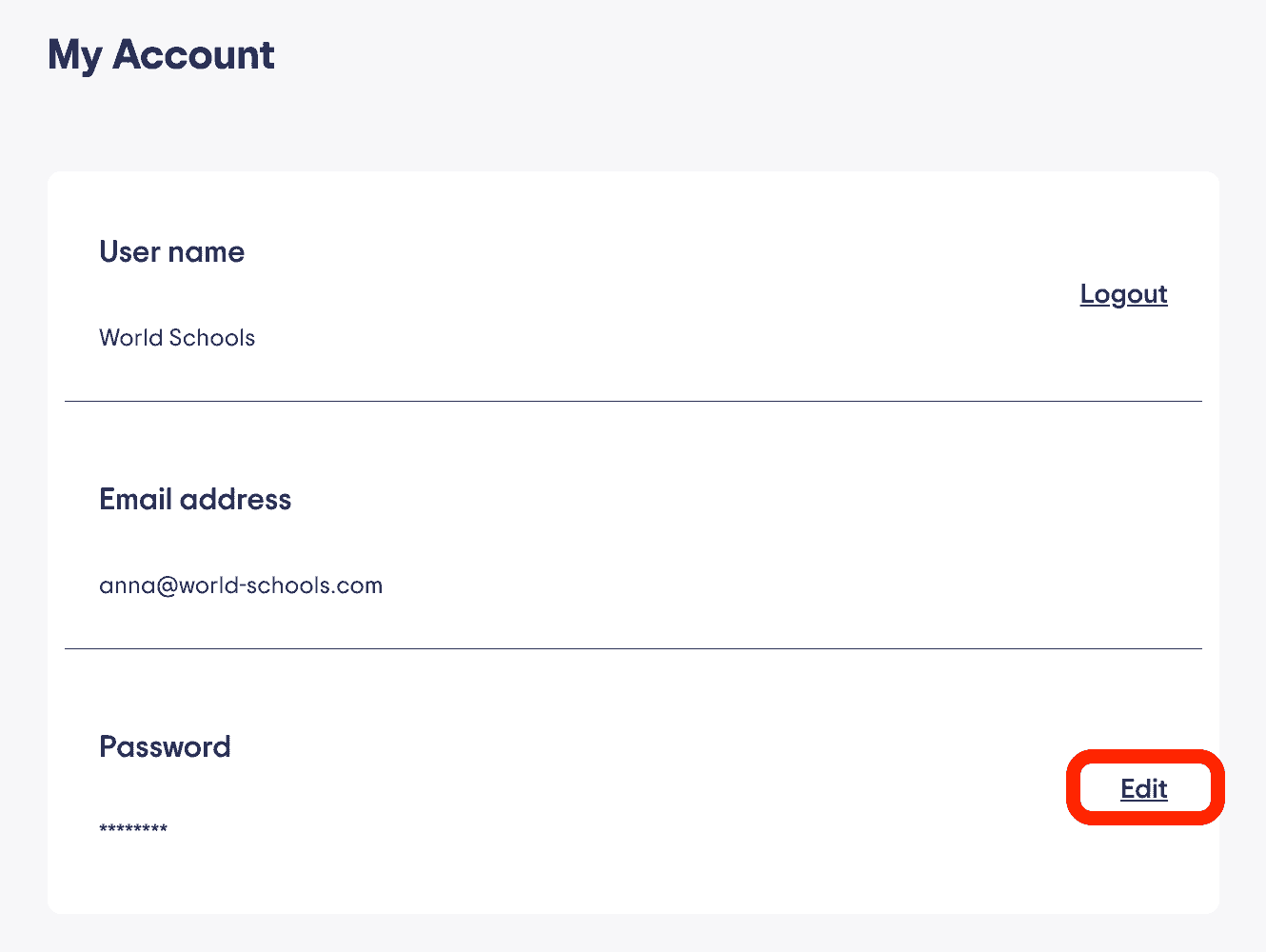
Once inside the Login & Security section, look for the “Password” row.
Click the “Edit” button next to it.
Save Changes
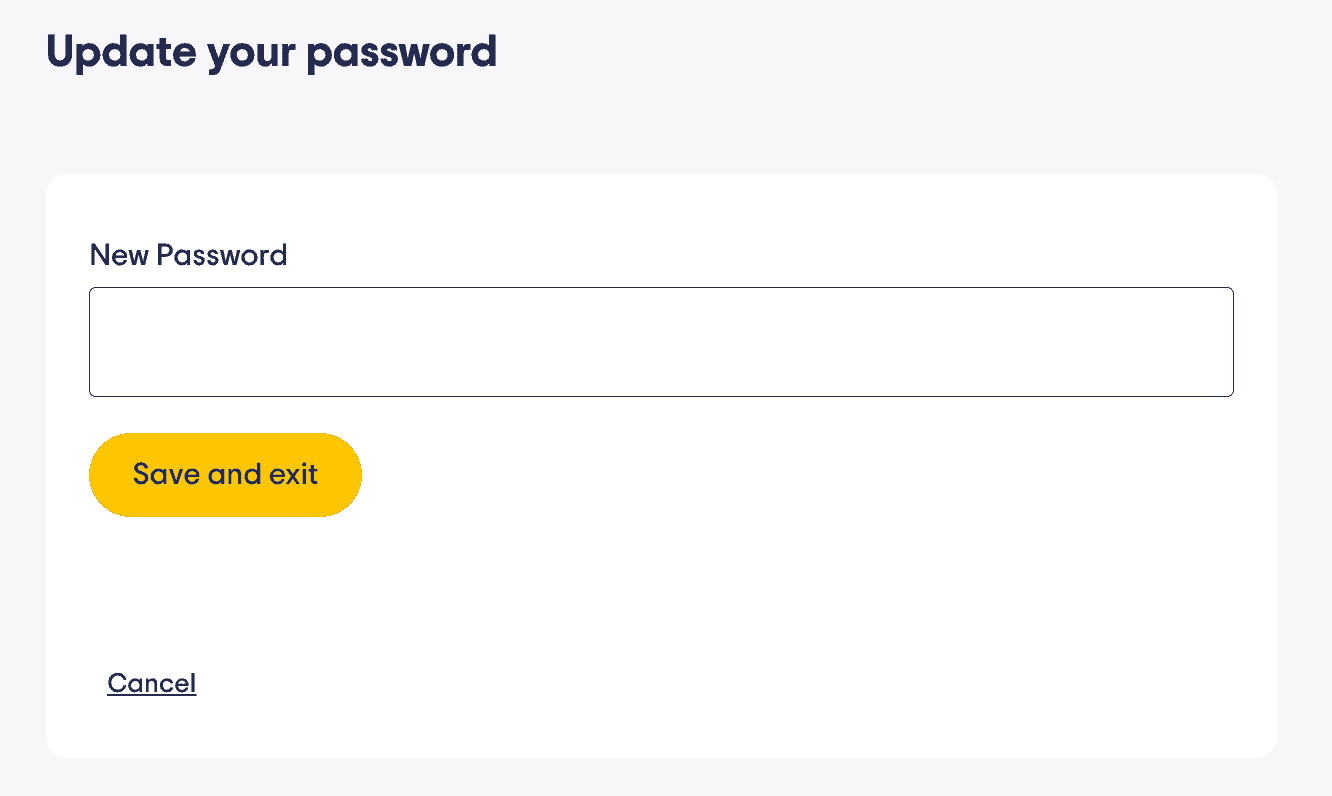
Enter your new password in the field provided.
When you’re done, click “Save and Exit” to apply the changes.
Change email address
If you need to change the email address associated with the school profile you need to contact us. Feel free to do so from the Centro de ajuda or email directly at community@world-schools.com.
Precisa de ajuda?
If you don’t receive the reset email or need assistance:
- Contact us at community@world-schools.com
- Ou contacte diretamente o seu gestor de conta